1 What the Chatbot Does
The VATable website (vatable.co) has a live chat widget powered by GoHighLevel (GHL). This widget appears as a small chat icon in the bottom-right corner of every page on the website.
Its purpose is to capture enquiries from potential clients who visit the website. When a visitor starts a chat, they are guided through a brief qualifying conversation, and their details are automatically captured as a new contact in the GHL CRM.
What happens when someone uses the chat widget
Two ways to chat
When a visitor clicks the chat icon, they are presented with two options:
| Chat via Live Chat | Opens an instant messaging window on the website. Messages appear in the GHL Conversations inbox in real time. Best for visitors who want an immediate response. |
|---|---|
| Chat via SMS/Email | Asks the visitor for their phone number or email, then continues the conversation over SMS or email. Useful when a visitor wants to leave a message and get a reply later. |
2 The Website Chat Widget
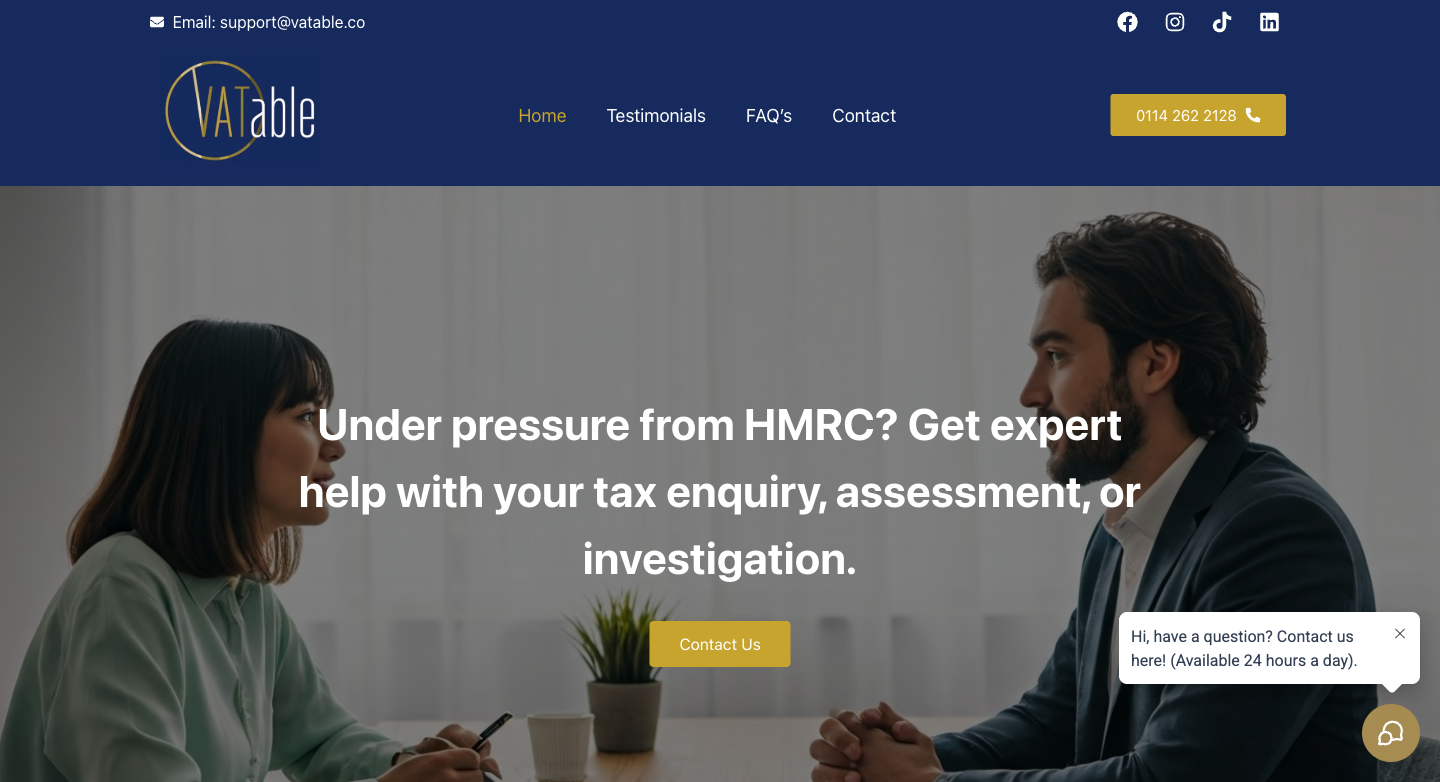
The chat widget is visible on every page of the VATable website. Here is how it appears to visitors:
What the visitor sees
- A small chat icon (headset/speech bubble) appears in the bottom-right corner of the page.
- A speech bubble prompt floats above the icon with the message:
"Hi, have a question? Contact us here! (Available 24 hours a day)." - When clicked, the widget opens with a greeting:
"Hi there! Welcome to VATable, how can I support you today?" - Two buttons appear: "Chat via SMS/Email" and "Chat via Live Chat".
- If the visitor chooses Live Chat, they are asked for their name and email or phone number before the conversation starts.
Settings → Chat Widget. The current greeting is set to create a warm, available impression.
3 How Enquiries Come In
When a visitor submits a webchat message through the chat widget, the following happens automatically in GoHighLevel:
Step-by-step: Webchat to CRM
- Contact is created (or matched). GHL checks if the visitor's phone or email already exists. If not, a new contact record is created automatically. If it does exist, the conversation is linked to the existing contact.
- Conversation appears in the Inbox. The new message appears under
Conversations → Team Inbox → Unreadin real time. A notification badge also appears on the Conversations icon in the left sidebar. - Tag is applied. The contact receives the
enquiry submittedtag (depending on workflow configuration). - Opportunity may be created. If the enquiry workflow triggers, an opportunity is created in the MASTER: VATable Sales Pipeline at the "Enquiries" stage.
• Conversations (left sidebar) - to read and reply to the message
• Contacts (left sidebar) - to see the full contact record with tags, owner, and history
The website enquiry form (separate from webchat)
Note that the VATable website also has a dedicated enquiry form (at the bottom of the homepage) with fields for First Name, Last Name, Phone, Email, and "Current situation". Submissions from this form also create contacts in GHL. The form includes a consent checkbox and reCAPTCHA protection.
4 How to View a Webchat Conversation
Navigating to the Conversations inbox
- Log in to GoHighLevel at link.thecarepro-ai.co.uk and ensure you are in the VATable sub-account (shown as "VATable, Sheffield, England" in the top-left corner of the sidebar).
- Click "Conversations" in the left sidebar. This opens the Conversations inbox.
- The inbox is divided into sections:
• Team Inbox - all conversations across the team (Unread, Recents, Starred, All)
• My Inbox → Assigned to me - only conversations assigned to you
• Internal Chat - internal team messages (not client-facing) - Click on "Unread" under Team Inbox to see new, unread messages. New webchat conversations will appear here.
- Click on any conversation in the left panel to open it. The conversation thread appears in the centre, and the contact details panel appears on the right.
What the Conversations screen looks like
The Conversations inbox has three main panels:
| Left Panel | List of all conversations, sorted by most recent. Each entry shows the contact name, a preview of the last message, the time, and an unread count badge. |
|---|---|
| Centre Panel | The conversation thread with the selected contact. Shows all messages (sent and received), with timestamps. Below the thread: channel tabs (SMS, WhatsApp, Email, Internal Comment) and a message input box. |
| Right Panel | Contact details including name, email, phone, Owner (Assigned to), Followers, Contact Engagement Score, Tags, and Active Automations. |
Filtering webchat conversations
To see only webchat/live chat conversations, click the Filters icon next to the search bar and filter by channel type. This helps you isolate webchat leads from SMS or email conversations.
5 How Lead Source Shows on the Contact Record
Where to find the contact record
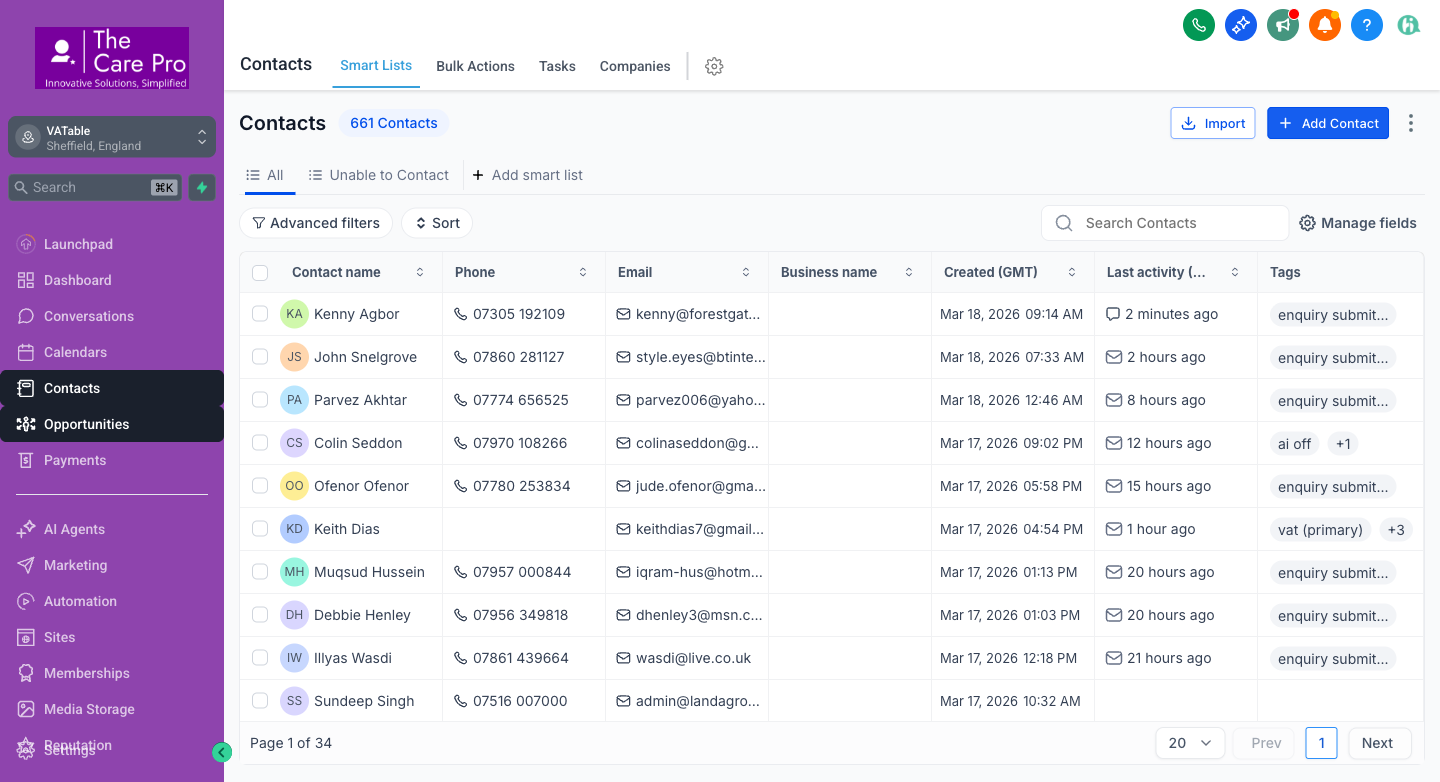
- Navigate to Contacts → Smart Lists → All in the left sidebar.
- Find the contact by name, email, or phone. The list shows Contact name, Phone, Email, Business name, Created (GMT), Last activity, and Tags.
- Click on a contact name to open their full record.
Where lead source should appear
On the contact detail view, the lead source information should be visible in these locations:
| Source field | In the contact's Additional Info section, there is a "Source" field. For webchat leads, this should show Chat Widget or Website. |
|---|---|
| Opportunity Source | If an opportunity was created, the Opportunity card will show "Opportunity Source" which may say Website Form, Phone Call, or similar. |
| Tags | Look for tags like enquiry submitted which confirm the contact came through an enquiry channel. |
6 How to Reply to a Webchat Message
Replying from the Conversations screen
- Open the Conversations inbox from the left sidebar.
- Click on the conversation you want to reply to in the left panel.
- The conversation thread loads in the centre panel. At the bottom, you will see channel tabs:
• SMS - reply via text message
• WhatsApp - reply via WhatsApp
• Email - reply via email
• Internal Comment - leave a note for your team (not visible to the contact) - Select the appropriate channel tab. For webchat responses:
• If the visitor used Live Chat, the response will go back through the live chat channel.
• If the visitor provided a phone number, you can reply via SMS.
• If the visitor provided an email, you can reply via Email. - Type your message in the "Type a message" text box at the bottom.
- Click the blue "Send" button (or press Enter) to send your reply.
Using Internal Comments
If you need to discuss a lead with a colleague before replying, click the "Internal Comment" tab. Any notes you leave here are visible only to GHL users - the contact will never see them. This is useful for:
- Asking a colleague to take over a conversation
- Noting key details about the enquiry
- Flagging a lead for follow-up
Marking conversations as read / starred
Use the toolbar icons at the top of the conversation panel:
| Star icon | Marks the conversation as "Starred" for easy retrieval later. |
|---|---|
| Mark as Read | Clears the unread badge on this conversation. |
| Delete | Removes the conversation (use with caution). |
7 What "Owner" Means for Webchat Leads
Every contact in GHL has an Owner (Assigned to) field. This determines:
- Who is responsible for following up with the lead
- Whose "My Inbox" the conversation appears in
- Who receives task notifications related to the contact
- Who is assigned any opportunities linked to that contact
The Owner is displayed in the right panel of the Conversations screen, under the contact's name, email, and phone number. It shows as "Owner (Assigned to)" with the team member's name and avatar.
How owner assignment currently works
| Webchat leads | Currently default to a single user (often Keith). This is a known issue - the owner should be assigned based on the enquiry type or via round-robin distribution. |
|---|---|
| Website form leads | Similarly default to a single user. The correct behaviour would be automatic assignment based on case type or availability. |
| Manually created contacts | Owner is set by whoever creates the contact. |
• Use round-robin assignment to distribute leads across the business development team, or
• Assign based on enquiry type (e.g., VAT enquiries to the VAT specialist, Time to Pay to the TTP specialist)
How to change the owner manually
- Open the conversation in the Conversations inbox.
- In the right panel, find the "Owner (Assigned to)" field.
- Click the dropdown arrow next to the current owner's name.
- Select the correct team member from the list.
- The conversation will now appear in that person's "My Inbox" and they will be responsible for follow-up.
8 Known Issues Being Fixed
The following webchat-related issues have been identified and are being actively worked on. These are tracked as items W1 through W4 in the VATable GHL improvement plan.
| Ref | Issue | Impact | Status |
|---|---|---|---|
| W1 | Chat widget welcome message and branding. The chat widget greeting, colours, and avatar may need updating to better match VATable branding and provide clearer qualifying questions. | First impressions for website visitors. | Planned |
| W2 | Lead source not populating correctly. When a contact is created via the chat widget, the "Source" field on the contact record may not show "Chat Widget" or "Live Chat" as expected. | Difficult to track which leads came from the chatbot vs. other channels. | In Progress |
| W3 | Owner assignment defaults to Keith. All webchat leads are assigned to a single user instead of being distributed to the correct team member or via round-robin. | Keith's inbox gets overloaded; other team members don't see new leads in their "My Inbox". | In Progress |
| W4 | Webchat-to-opportunity automation. The workflow that creates an opportunity from a webchat lead may need refinement to ensure the opportunity is created in the correct pipeline stage with the right metadata. | Manual effort required to create opportunities from webchat leads. | Planned |
• The chat widget loads and displays on all pages of vatable.co
• The welcome message "Hi, have a question? Contact us here! (Available 24 hours a day)." is shown
• Visitors can choose between Live Chat and SMS/Email
• Contacts are created in GHL when visitors submit their details
• Conversations appear in the Team Inbox
• Team members can reply via SMS, email, or live chat from the Conversations screen
• The website enquiry form (separate from chat) is fully functional with reCAPTCHA protection
Quick Reference
Key navigation paths
| View all conversations | Sidebar → Conversations → Team Inbox → All |
|---|---|
| View unread messages | Sidebar → Conversations → Team Inbox → Unread |
| View my assigned conversations | Sidebar → Conversations → My Inbox → Assigned to me |
| Find a contact | Sidebar → Contacts → Smart Lists → All → Search |
| View opportunities | Sidebar → Opportunities → select pipeline |
| Chat widget settings | Sidebar → Settings → Chat Widget |
Key contacts
| Technical support | Keith - GHL configuration and automation |
|---|---|
| Business queries | Charles Dobson - support@vatable.co |