1 Where to Find Tasks in GHL
Tasks in GoHighLevel are accessed through the Contacts section of the left sidebar. The Tasks tab sits under the Contacts heading as a dedicated sub-page.
Navigation Path
-
1
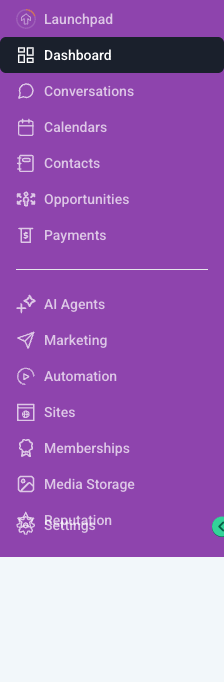
Click "Contacts" in the left sidebar
In the purple sidebar on the left side of GHL, click the Contacts icon. This is located between Calendars and Opportunities.
-
2
Click the "Tasks" tab in the top navigation bar
Once on the Contacts page, you will see tabs along the top: Smart Lists, Bulk Actions, Tasks, Companies. Click Tasks.
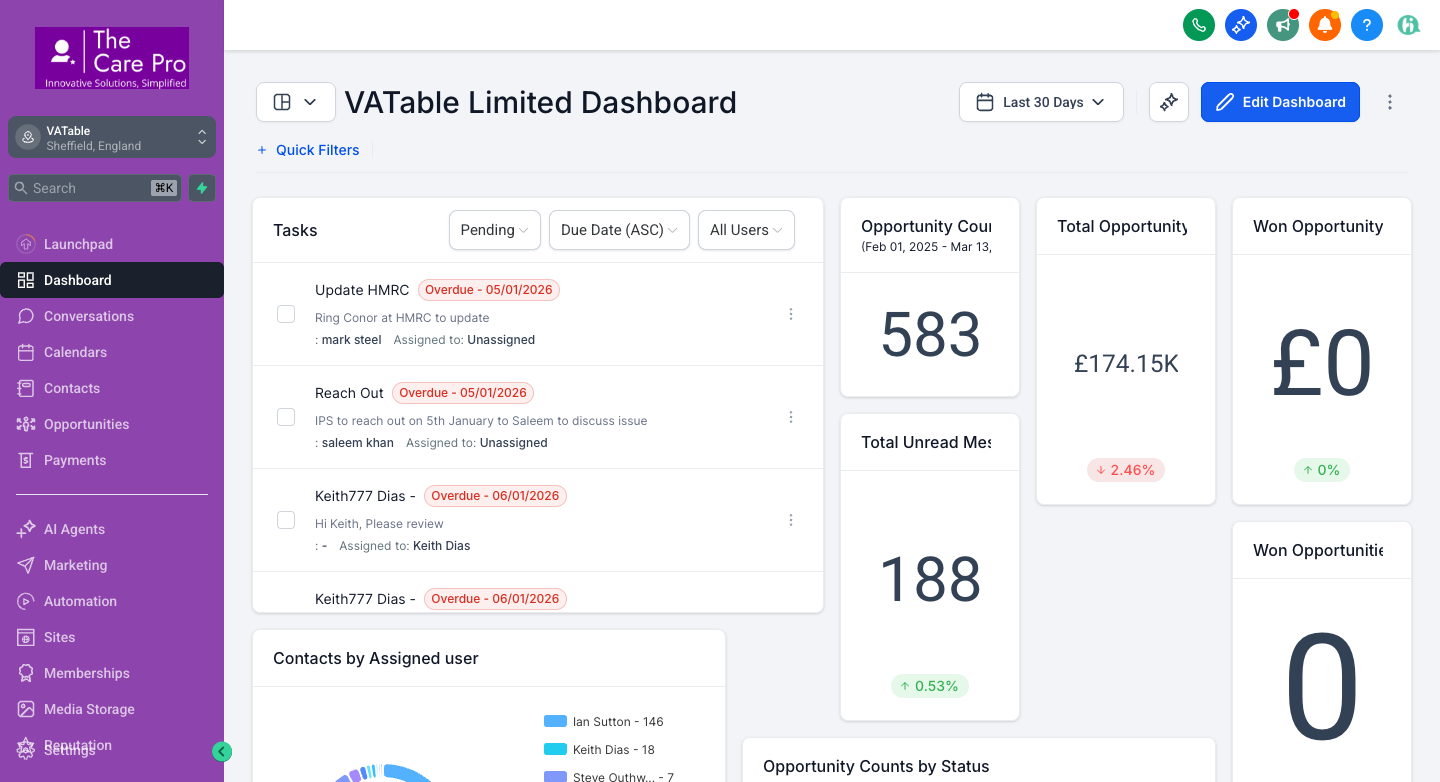
You can also see a Tasks widget on the Dashboard. It shows your pending tasks with filters for status, sorting, and assignee. Click "Go to tasks" at the bottom of that widget to jump straight to the full Tasks list.
2 The Task List View
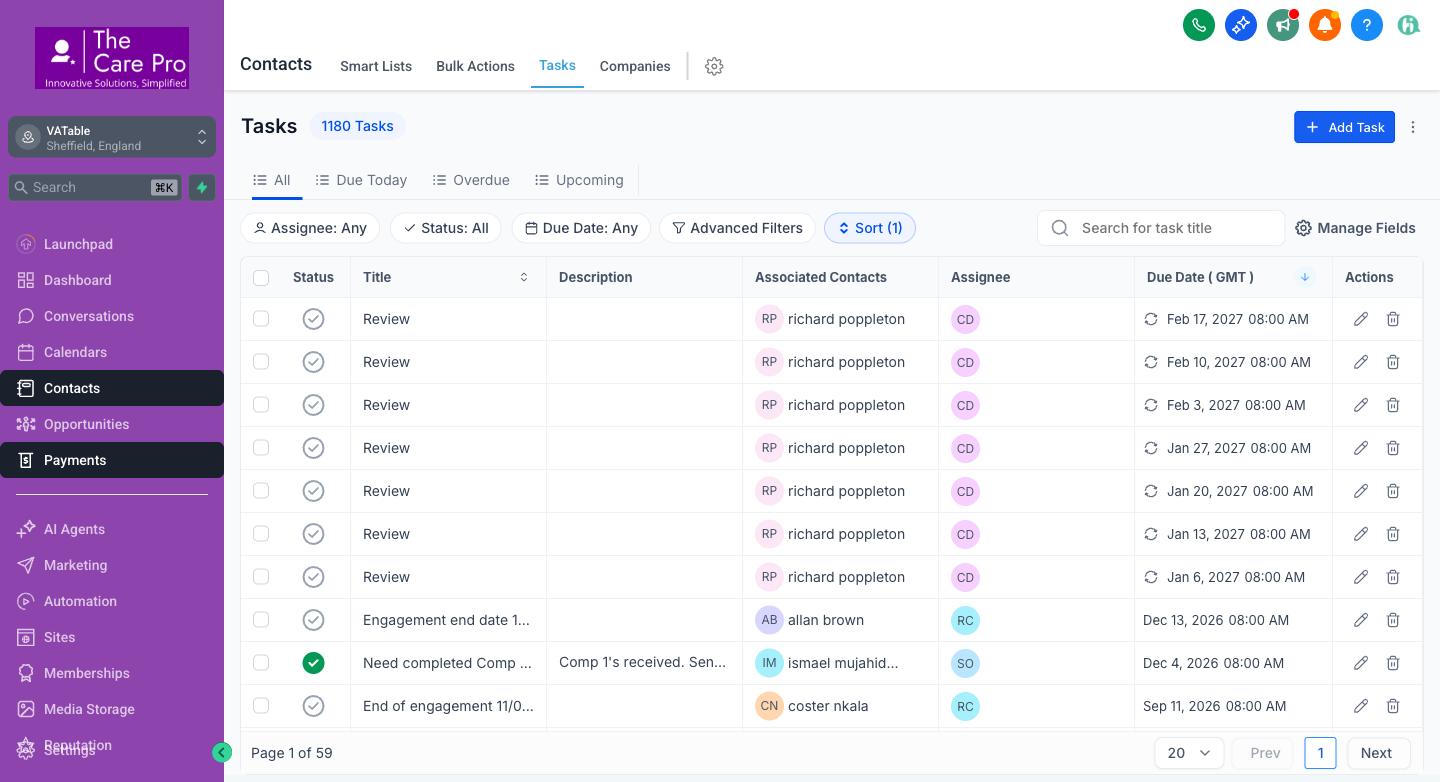
The Tasks list view is the main control centre for all tasks across the VATable account. Currently there are 1,180 tasks in the system.
What the Task List Shows
Each row in the task table displays:
- Status -- green tick (completed) or grey circle (pending)
- Title -- the name of the task (e.g., "Engagement end date 27/07/2026", "Review", "Generate Invoice")
- Description -- additional detail about what needs to be done
- Associated Contacts -- the client contact linked to this task, shown as initials and name. Click the name to jump to that contact's record.
- Assignee -- the team member responsible, shown as initials (RC = Ruby Campbell, CD = Charles Dobson, SO = Steve Outhwaite, etc.)
- Due Date (GMT) -- when the task is due. An alarm icon indicates the task is upcoming; no icon means it is past due.
- Actions -- pencil icon to edit, bin icon to delete
Quick Filter Tabs
At the top of the task list, four tabs let you quickly filter:
All
Shows every task in the system, regardless of status or due date.
Due Today
Shows only tasks with today's date as the due date. Check this first thing every morning.
Overdue
Shows tasks whose due date has passed and are still not completed. These need immediate attention.
Upcoming
Shows tasks due in the future. Use this to plan ahead for the coming days and weeks.
Filter Dropdowns
Below the tabs, three filter dropdowns let you narrow results further:
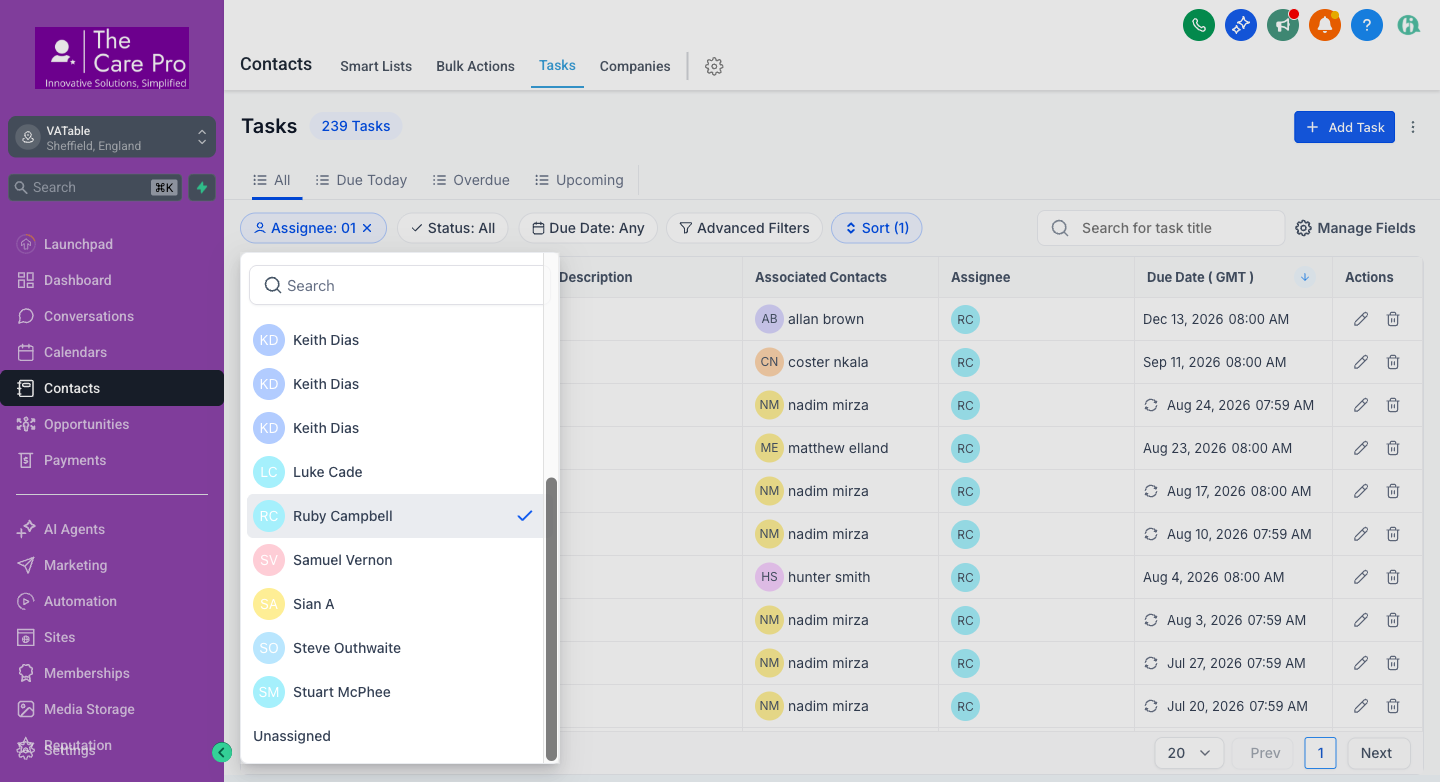
- Assignee -- filter by a specific team member (e.g., Ruby Campbell, Steve Outhwaite, Keith Dias)
- Status -- filter by All, Pending, or Completed
- Due Date -- filter by date range
You can also use Advanced Filters for more complex queries, and the Sort button to change the ordering (default is Due Date descending).
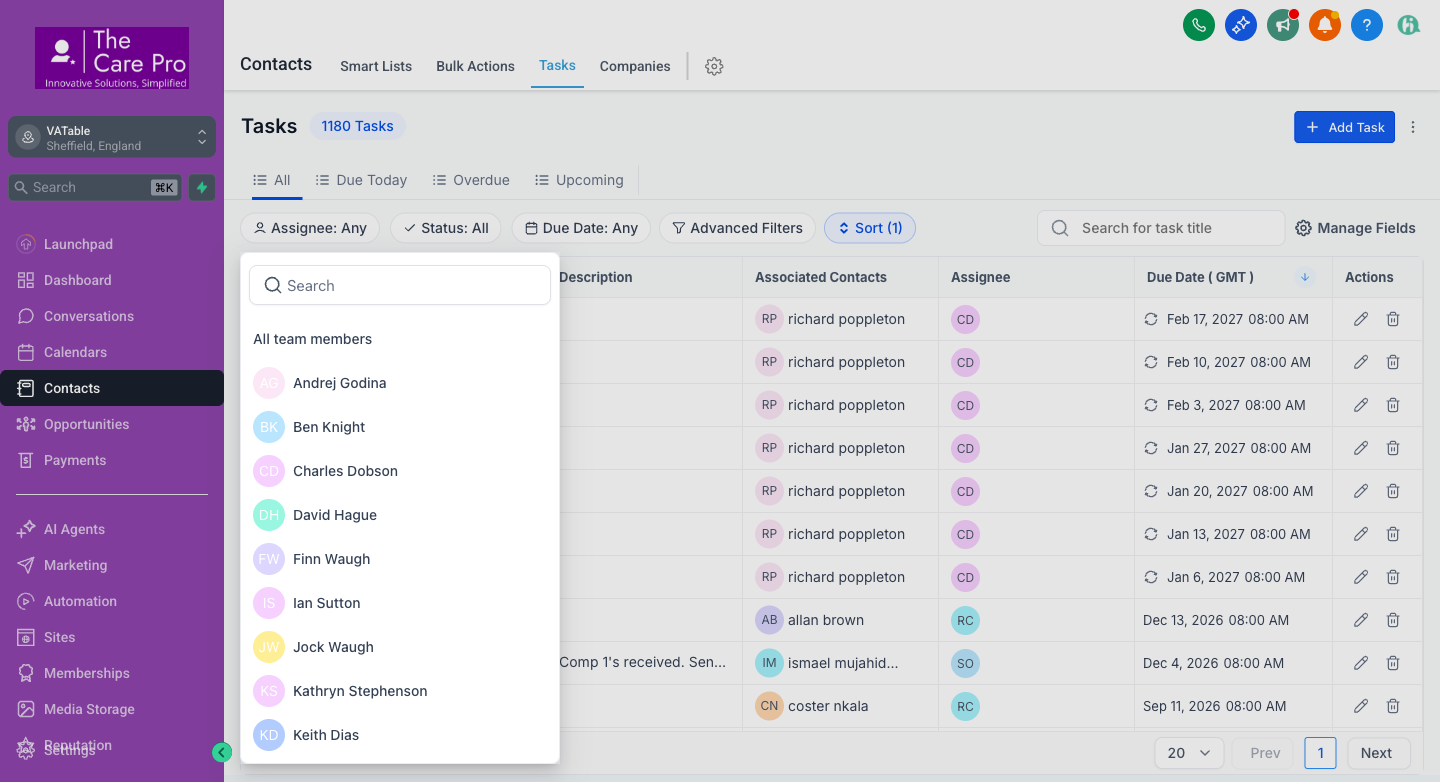
Filtering by Assignee
To see only your own tasks, click the Assignee dropdown and select your name from the team list. The list updates immediately to show only tasks assigned to you.
3 Ruby's Daily Task Routine
Ruby Campbell is the primary recipient of automated tasks from the VATable workflow system. Three workflows generate tasks specifically for Ruby:
| Workflow | Task Title | When Created | Due In |
|---|---|---|---|
| WF10 End of Engagement Review | Generate Invoice | When a case reaches "End of Engagement Review" in the Case Management pipeline | 1 day |
| WF12 Engagement Warning Date | Engagement expiry warning | When the "Engagement Warning Date" custom field date is reached | 1 day |
| WF7 Service Completed | Service completion review / testimonial | When an opportunity reaches "Service Completed" in the MASTER pipeline | 1 day |
Morning Task Routine
Complete these steps every morning when you log in to GHL
- Go to Contacts → Tasks and filter by Assignee: Ruby Campbell 9:00 AM
- Click the "Due Today" tab to see what is due today 9:02 AM
- Click the "Overdue" tab to check for any missed tasks from previous days 9:05 AM
- For each invoice generation task (WF10): open the contact, generate the invoice, then mark the task complete 9:10 AM
- For each engagement expiry warning (WF12): review the engagement dates, flag any that need immediate attention to the case owner 9:30 AM
- For each service completion review (WF7): check if the client needs a testimonial request or final review 9:45 AM
- Click the "Upcoming" tab to preview tomorrow's and this week's tasks 10:00 AM
- Check the Conversations inbox for any new messages 10:05 AM
4 Case Owner Task Routine
Case owners (the team member assigned to a contact/opportunity) receive automated review tasks from Workflow WF11.
| Workflow | Task Title | When Created | Due In | Assigned To |
|---|---|---|---|---|
| WF11 Case Management Stage Entry | Case review task (e.g., "Review", "Hi Keith, Please review") |
When a case enters any stage in the Case Management pipeline (Time to Pay, Direct Tax, VAT, Miscellaneous, End of Engagement Review) | 2 days | Contact Owner |
What Case Owners Should Do
-
1
Check your task list daily
Filter by your name in the Assignee dropdown to see only your tasks.
-
2
Open the task and read the description
Click the task title or the edit (pencil) icon to see the full details.
-
3
Click the contact name to view their record
The "Associated Contacts" column links directly to the contact's profile in GHL, where you can see their case history, notes, and opportunity details.
-
4
Review the case and reach out to the client if needed
Check the case progress, review any outstanding items, and contact the client by phone, email, or SMS through GHL Conversations.
-
5
Mark the task as complete
Once you have reviewed the case and taken the necessary action, click the status circle to mark the task complete.
5 How to Action a Task
Every task follows the same basic workflow: read it, do the work, mark it done.
Task Lifecycle
Step-by-Step: Actioning a Task
-
1
Find the task in your task list
Navigate to Contacts → Tasks and filter by your name. Use the "Due Today" or "Overdue" tabs.
-
2
Read the task title and description
The title tells you what needs to be done. The description column may contain additional detail. For example: "Engagement end date 27/07/2026" tells you an engagement is about to expire on that date.
-
3
Open the contact's record
Click the contact name in the "Associated Contacts" column. This opens their full profile where you can see their opportunity, notes, emails, and case history.
-
4
Complete the required action
Depending on the task type:
• Invoice generation: Create and send the invoice
• Engagement expiry warning: Review the engagement, notify the case owner
• Case review: Review the client's case status, reach out if needed
• Service completion: Arrange testimonial request, final review -
5
Mark the task as complete
Click the status circle (grey circle) on the left side of the task row. It will turn into a green tick, indicating the task is done. Alternatively, click the pencil edit icon and change the status to "Completed" in the task edit panel.
6 How to Create a Manual Task
While most tasks are created automatically by workflows, you can also create tasks manually for yourself or a colleague.
-
1
Click the "+ Add Task" button
Located in the top-right corner of the Tasks list view. It is a purple button with a "+" icon.
-
2
Fill in the task details
• Title: A short, clear description of what needs to be done (e.g., "Call John Smith re invoice query")
• Description: Any additional context or instructions
• Assignee: Choose who should complete this task (yourself or a colleague)
• Due Date: Set the deadline
• Associated Contact: Link this task to a specific client contact -
3
Save the task
Click Save. The task will appear in the assignee's task list immediately.
You can also create a task directly from a contact's profile. Open the contact, go to their Tasks tab, and click "Add Task" there. The contact will be automatically linked to the task.
7 How to Reassign a Task
If a team member is away or if a task was assigned to the wrong person, you can reassign it.
-
1
Find the task in the task list
Use the Assignee filter or search by title to locate the task.
-
2
Click the pencil (edit) icon in the Actions column
This opens the task editing panel.
-
3
Change the Assignee
In the task edit panel, click the Assignee field and select the new team member from the dropdown list.
-
4
Save the changes
The task will immediately move to the new assignee's task list.
When a team member is on holiday, their pending tasks should be reassigned to another team member. Ask Charles or a manager to bulk-reassign tasks if needed. Do not let tasks pile up unattended.
8 Task Due Date Rules
The automated workflows create tasks with specific due dates. Understanding these rules helps you prioritise your work.
| Workflow | Task Type | Due Date | Priority |
|---|---|---|---|
| WF10 | Generate Invoice (Ruby) | Due in 1 day | High -- invoice must be generated promptly |
| WF12 | Engagement Expiry Warning (Ruby) | Due in 1 day | High -- engagement end date is approaching |
| WF7 | Service Completion Review (Ruby) | Due in 1 day | Medium -- review and arrange testimonial |
| WF11 | Case Management Review (Contact Owner) | Due in 2 days | Medium -- review and reach out to client |
Tasks with 1-day due dates (WF10, WF12, WF7) are time-sensitive. If you do not action them on the day they are due, they become overdue and will appear in the Overdue tab with a red indicator. Overdue tasks mean invoices are delayed, engagement warnings are missed, or clients are not contacted on time.
If you are unable to complete a task on time, reassign it to a colleague or notify Charles immediately.
9 What to Do if a Task is Missed
If you find overdue tasks in your list, here is how to catch up:
-
1
Click the "Overdue" tab
This shows all tasks that are past their due date and still incomplete.
-
2
Prioritise by oldest first
Use the Sort button to sort by Due Date ascending (oldest first). The longest-overdue tasks need attention first.
-
3
Open the contact record for context
Click the contact name to see their full history. Check the opportunity, notes, and any recent activity to understand the current state of the case before taking action.
-
4
Take the action and mark complete
Do the required work (generate invoice, review engagement, etc.) and mark the task complete.
-
5
If the task is no longer relevant
Some overdue tasks may be outdated (e.g., the case has already moved forward). If so, mark it complete with a note, or delete it using the bin icon. Always check the contact record before deleting.
For older overdue tasks, always open the contact's record to check the current situation. Things may have changed since the task was created. Look at the opportunity stage, recent notes, and any emails or conversations for context.
10 How Tasks Relate to Automations
Tasks in the VATable system are the human checkpoint in an automated workflow. The system handles the detection and notification automatically -- your job is to do the work and close the loop.
How Automation and Tasks Work Together
(stage change, date reached, etc.)
(auto-assigned, auto-dated)
(the human work)
(loop closed)
The "NMF Kill Switch" (WF13)
When a contact is marked as Not Moving Forward (NMF), Workflow WF13 fires and removes the contact from all active workflows. This means no more automated tasks will be created for that contact. The tag nmf-cleared is applied to confirm the cleanup.
Team Task Ownership Table
| Workflow | Trigger | Task Created | Assigned To | Due |
|---|---|---|---|---|
| WF7 | Opportunity reaches "Service Completed" | Review / testimonial | Ruby Campbell | 1 day |
| WF10 | Case reaches "End of Engagement Review" | Generate Invoice | Ruby Campbell | 1 day |
| WF11 | Case enters any Case Management stage | Case review | Contact Owner | 2 days |
| WF12 | Engagement Warning Date is reached | Engagement expiry warning | Ruby Campbell | 1 day |
| WF13 | Contact marked NMF | No task -- removes from workflows | N/A | N/A |
11 Morning Routine Checklist
Every team member should follow this routine when they start their day in GHL. This ensures nothing falls through the cracks and clients receive timely service.
Daily Morning Routine -- All Team Members
Suggested daily order for processing your GHL workload
- Check your Task List -- Go to Contacts → Tasks, filter by your name, check "Due Today" and "Overdue" tabs Step 1
- Action urgent items first -- Invoice generation, engagement warnings, and case reviews that are due today Step 2
- Clear overdue tasks -- Open each overdue task, check the contact record, complete the action, mark done Step 3
- Update opportunity stages -- Check your active opportunities in the pipeline and move any that have progressed Step 4
- Check the Conversations inbox -- Review and respond to any new messages from clients Step 5
- Preview upcoming tasks -- Click the "Upcoming" tab to see what is coming in the next few days Step 6
The automated workflows create new tasks continuously as cases progress through the pipeline. If you do not complete and mark your tasks as done, the list grows quickly and becomes unmanageable. A clean task list means you are on top of your workload. A long overdue list means clients are being missed.
Keep your task list clear. Aim for zero overdue tasks at the end of every working day.
Before logging off, do a quick final check:
- Have all of today's tasks been completed?
- Are there any overdue tasks that need to be flagged for tomorrow?
- Have you added notes to any contact records that were actioned today?