1 When to Invoice a Client
Invoicing is triggered when a case reaches the End of Engagement Review stage in the Case Management Pipeline. When this happens, an automated workflow (WF10) creates a task assigned to Ruby Campbell to generate the invoice.
The Automated Trigger
- The case owner moves an opportunity to the "End of Engagement Review" stage in the Case Management Pipeline.
- Workflow WF10 fires automatically and creates a task: "Generate Final Invoice", assigned to Ruby.
- Ruby receives a notification and can find the task under Contacts > Tasks in GHL.
- Ruby looks up the opportunity to find the agreed fee, then creates the invoice manually in GHL.
Other Invoicing Scenarios
While End of Engagement Review is the primary trigger, you may also need to invoice in these situations:
- Monthly retainer billing - recurring invoices for ongoing case management (use GHL's recurring invoice feature)
- Ad-hoc services - when Charles or another advisor requests an invoice for additional work
- Partial billing - when a case fee is split across milestones
2 Navigating to the Invoices Section
Step-by-Step Navigation
- Log in to GoHighLevel at link.thecarepro-ai.co.uk.
- Make sure you are in the VATable sub-account (check the top-left corner - it should show "VATable, Sheffield, England").
- In the left sidebar, click Payments (it has a credit card icon and sits below "Opportunities").
- You will land on the Invoices & Estimates tab by default. This is the invoices dashboard.
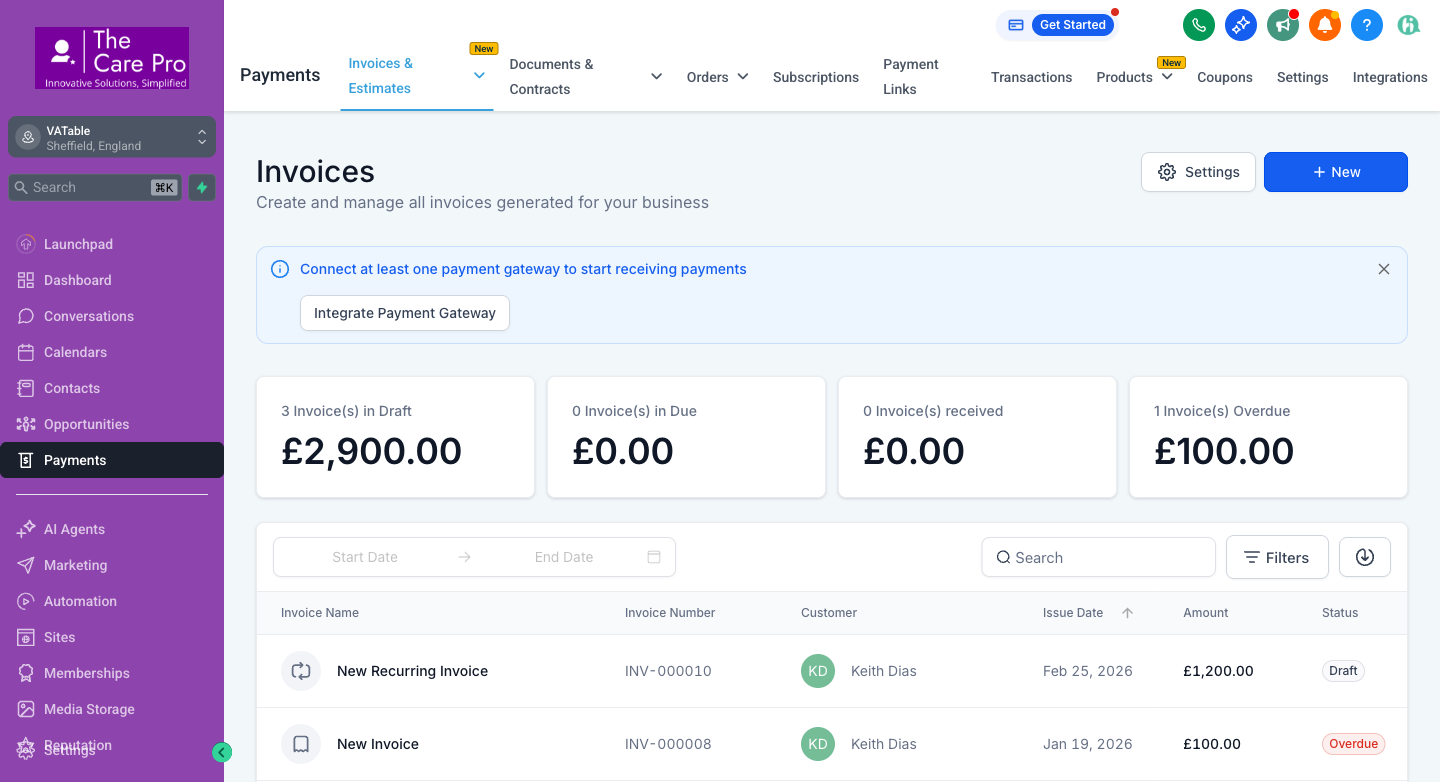
Payments Sub-Navigation Tabs
The top bar of the Payments section has multiple tabs. Here is what each one does:
| Tab | Purpose | Used for invoicing? |
|---|---|---|
| Invoices & Estimates | Create and manage invoices and estimates | Yes - this is your main tab |
| Documents & Contracts | Proposals, engagement letters, contracts | No |
| Orders | Product orders (not used by VATable) | No |
| Subscriptions | Recurring subscription management | Possibly for monthly retainers |
| Payment Links | One-click payment URLs (Text2Pay) | Alternative for quick payments |
| Transactions | View all completed transactions | For checking payment history |
| Settings | Payment receipts, branding, notifications | Setup only |
| Integrations | Connect Stripe, PayPal, etc. | Setup only |
3 Creating a New Invoice
Follow these steps to create a new invoice from scratch.
-
Click the "+ New" button
On the Invoices dashboard (Payments > Invoices & Estimates), click the blue "+ New" button in the top-right corner. A dropdown may appear - select "Invoice" (not "Estimate" or "Recurring Invoice" unless creating a monthly retainer). -
Set the Invoice Name
Enter a descriptive name. Use the naming convention:
[Case Type] - [Client Name] - [Month/Year]
Examples: "VAT Review - Smith Ltd - Mar 2026", "TTP Agreement - John Doe - Q1 2026" -
Select the Customer (Contact)
Click the "Customer" field and search for the client by name. Select the correct contact from the dropdown. This links the invoice to their contact record. -
Set the Issue Date
The issue date defaults to today. Adjust if needed (e.g., if backdating to match engagement end date). -
Set the Due Date / Payment Terms
Choose your payment terms:- Due on receipt - for one-time payments
- Net 14 - due 14 days from issue (standard for VATable)
- Net 30 - due 30 days from issue
- Custom date - set a specific due date
-
Add Line Items
Click "Add Item" to add service line items. For each item enter:- Item Name
- Description of the service (e.g., "VAT Investigation - Professional Fees")
- Description
- Optional detail (e.g., "As per engagement letter dated 15/01/2026")
- Rate
- The agreed fee amount (look this up from the opportunity - see Section 4)
- Quantity
- Usually 1, unless billing multiple units
- Tax
- Add VAT at 20% if applicable (VATable is VAT-registered)
-
Add Additional Line Items (if needed)
For complex cases you may need multiple line items, such as:- Professional fees (main service)
- Disbursements (e.g., HMRC penalties paid on behalf)
- Monthly management fee
-
Add Notes or Terms
Scroll down to add:- Notes to client - e.g., "Thank you for choosing VATable"
- Terms & Conditions - payment terms, late payment interest notice
-
Review the Invoice Total
Check the subtotal, tax (if applied), and total at the bottom. Verify it matches the agreed fee from the opportunity. -
Save as Draft or Send
Click "Save" to save as a draft (you can review and send later), or proceed directly to send it to the client.
4 Finding Fee Information on the Opportunity
Before creating an invoice, you need to know the agreed fee. This information lives on the Opportunity record in the Case Management Pipeline.
How to Look Up the Fee
-
Go to Opportunities
Click Opportunities in the left sidebar. -
Select the Case Management Pipeline
Use the pipeline dropdown at the top to switch to "Case Management Pipeline". Look for the opportunity in the "End of Engagement Review" stage. -
Open the Opportunity
Click the opportunity card to open it. The opportunity detail panel will slide in from the right. -
Check the Monetary Value
The monetary value field on the opportunity shows the total agreed fee. This is the amount you should invoice. -
Check Custom Fields
Look for these custom fields which may contain additional fee details:- Monetary Value
- The total case fee (e.g., £2,500.00)
- Per Month For
- Monthly payment amount if on a payment plan (use for recurring invoices)
- Engagement Expiry Date
- When the engagement ends (field ID: lUccKbEHj5ZnmW1wXtFj)
-
Cross-reference the Engagement Letter
If in doubt about the fee, check the engagement letter under the contact's Documents & Contracts section, or ask the case owner (the advisor assigned to the opportunity).
5 Sending the Invoice to the Client
Once the invoice is created and saved as a draft, you can send it to the client via email directly from GHL.
-
Navigate to the Invoice
Go to Payments > Invoices & Estimates. Find your invoice in the list (it will show as DRAFT). -
Open the Invoice
Click on the invoice name to open it. -
Preview the Invoice
Review the invoice one final time. Check the client name, amount, line items, and due date are all correct. -
Click "Send"
Click the "Send" button. GHL will present a send dialog. -
Confirm the Recipient Email
The client's email address should auto-populate from their contact record. Verify it is correct. You can also add CC recipients if needed (e.g., the case owner). -
Customise the Email Message (Optional)
GHL includes a default email template. You can customise the subject line and body text. Suggested subject: "Invoice [INV-XXXXXX] from VATable - [Service Description]" -
Send the Invoice
Click "Send" to dispatch the invoice. The status will change from DRAFT to SENT.
6 Checking Payment Status
You can monitor all invoice statuses from the main invoices dashboard.
Dashboard Summary Cards
At the top of the Invoices page, four summary cards show your current invoice status at a glance:
Filtering and Searching
- Date range filter: Use the "Start Date" and "End Date" fields to filter invoices by issue date.
- Search: Use the search box to find invoices by name, number, or customer.
- Filters button: Click "Filters" to filter by status (Draft, Sent, Overdue, Paid, etc.).
- Export: Click the download icon next to Filters to export invoices as CSV for accounting records.
Invoice List Columns
| Column | What it shows |
|---|---|
| Invoice Name | The title you gave the invoice (plus an icon showing if it is a one-time or recurring invoice) |
| Invoice Number | Auto-generated (e.g., INV-000010). Sequential, cannot be changed. |
| Customer | The linked contact (with avatar initials) |
| Issue Date | When the invoice was created. Click the column header to sort. |
| Amount | Total invoice amount in GBP |
| Status | Current status badge (Draft, Sent, Overdue, Paid, Partially Paid) |
7 Recording a Payment
When a client pays via bank transfer (BACS) or other offline methods, you need to manually record the payment in GHL so the invoice status updates correctly.
-
Open the Invoice
Navigate to Payments > Invoices & Estimates and click on the invoice you need to mark as paid. -
Click "Record Payment"
Look for the "Record Payment" button (or the three-dot menu > "Record Payment"). This is available on sent or overdue invoices. -
Enter Payment Details
- Amount
- The amount received. Can be the full amount or a partial payment.
- Payment Date
- The date the payment was received (check bank statement).
- Payment Method
- Select: Bank Transfer / Cash / Cheque / Other.
- Notes
- Optional. Add a reference (e.g., bank reference number, "BACS received 15/03").
-
Save the Payment
Click "Save" or "Record". The invoice status will update:- If full amount: Status changes to PAID
- If partial amount: Status changes to PARTIALLY PAID
8 Invoice Statuses Explained
Every invoice in GHL has a status that reflects where it is in its lifecycle:
| Status | Meaning | Action Required? |
|---|---|---|
| DRAFT | Invoice created but not yet sent to the client. Only visible to your team. | Review and send to client. |
| SENT | Invoice has been emailed to the client. Awaiting payment. | Monitor for payment. Follow up if no payment after 7 days. |
| DUE | Invoice has been sent and the due date is approaching or today. | Send a reminder to the client if approaching due date. |
| OVERDUE | The due date has passed and payment has not been received. | Follow up immediately. Escalate to Charles if >30 days overdue. |
| PARTIALLY PAID | A partial payment has been recorded. Remaining balance outstanding. | Record additional payments as they arrive. Follow up for the balance. |
| PAID | Full payment has been received. Invoice is settled. | No action needed. Archive if desired. |
Current VATable Invoice Snapshot
As of 18 March 2026, the invoicing dashboard shows:
| Invoice | Number | Customer | Amount | Status |
|---|---|---|---|---|
| New Recurring Invoice | INV-000010 | Keith Dias | £1,200.00 | DRAFT |
| New Invoice | INV-000008 | Keith Dias | £100.00 | OVERDUE |
| New Recurring Invoice | INV-000009 | Keith Dias | £1,200.00 | DRAFT |
| New Invoice | INV-000004 | Keith Dias | £1,000.00 | PARTIALLY PAID |
| Text2Pay - Keith | INV-000006 | Keith Dias | £500.00 | DRAFT |
| Text2Pay - Keith | INV-000005 | Keith Testing | £255.00 | DRAFT |
| New Recurring Invoice | INV-000003 | Keith Dias | £1,200.00 | PARTIALLY PAID |
| New Invoice | INV-000002 | Ruby Campbell | £120.00 | OVERDUE |
| New Invoice | INV-000001 | Charles | £1,000.00 | OVERDUE |
9 Invoicing Best Practices & Naming Conventions
Invoice Naming Convention
Use a consistent naming format so invoices are easy to identify at a glance:
Examples:
VAT Investigation - ABC Trading Ltd - Mar 2026
Direct Tax Review - Jane Smith - Q1 2026
Time to Pay - XYZ Services - Monthly Mar 2026
Self Assessment - John Doe - 2024/25
Reference Numbers
GHL auto-generates invoice numbers (INV-000001, INV-000002, etc.). You do not need to create your own reference numbers. However, if your accountant requires a separate reference, you can add it in the invoice notes field.
Checklist Before Sending an Invoice
- Client name correct? - Double-check the contact is the right person/business.
- Amount matches engagement letter? - Cross-reference the opportunity monetary value.
- Line item descriptions are clear? - The client should understand what they are paying for.
- VAT applied correctly? - 20% VAT if the service is VAT-applicable.
- Due date is reasonable? - Standard is Net 14 or Net 30.
- Invoice name follows convention? - [Case Type] - [Client Name] - [Period].
- Client email address is correct? - Verify before sending.
Monthly Reconciliation
At the end of each month, review the invoices dashboard to:
- Identify all OVERDUE invoices and follow up
- Record any offline payments received (BACS transfers)
- Export the invoice list as CSV for the accountant (click the download icon)
- Review draft invoices that need to be sent or deleted
- Check the Transactions tab for a complete payment history
10 Troubleshooting & FAQs
Q: The client says they did not receive the invoice email
A: This is likely caused by the email deliverability issue. The GHL sending domain is vatables.co (with an S), which does not match the business domain vatable.co. Ask the client to check their spam/junk folder. As a workaround, you can:
- Download the invoice as PDF and email it manually from your
@vatable.coemail - Send a payment link via SMS (Text2Pay)
- Ask Charles to fix the sending domain in GHL Settings
Q: Can I edit an invoice after sending it?
A: Yes, but only if the invoice has not been paid. Open the invoice and click "Edit". If a partial payment has been recorded, you can still edit the remaining line items but cannot reduce the total below the amount already paid.
Q: How do I void/cancel an invoice?
A: Click the three-dot menu (…) next to the invoice in the list and select "Void". This marks the invoice as cancelled without deleting it, preserving your audit trail. Do not delete invoices as this removes the record entirely.
Q: How do I create a credit note?
A: GHL does not have a dedicated credit note feature. To issue a refund or credit, create a new invoice with a negative line item amount, or void the original invoice and create a new one with the corrected amount. Document the reason in the notes field.
Q: Where do I find the "Invoicing Pipeline"?
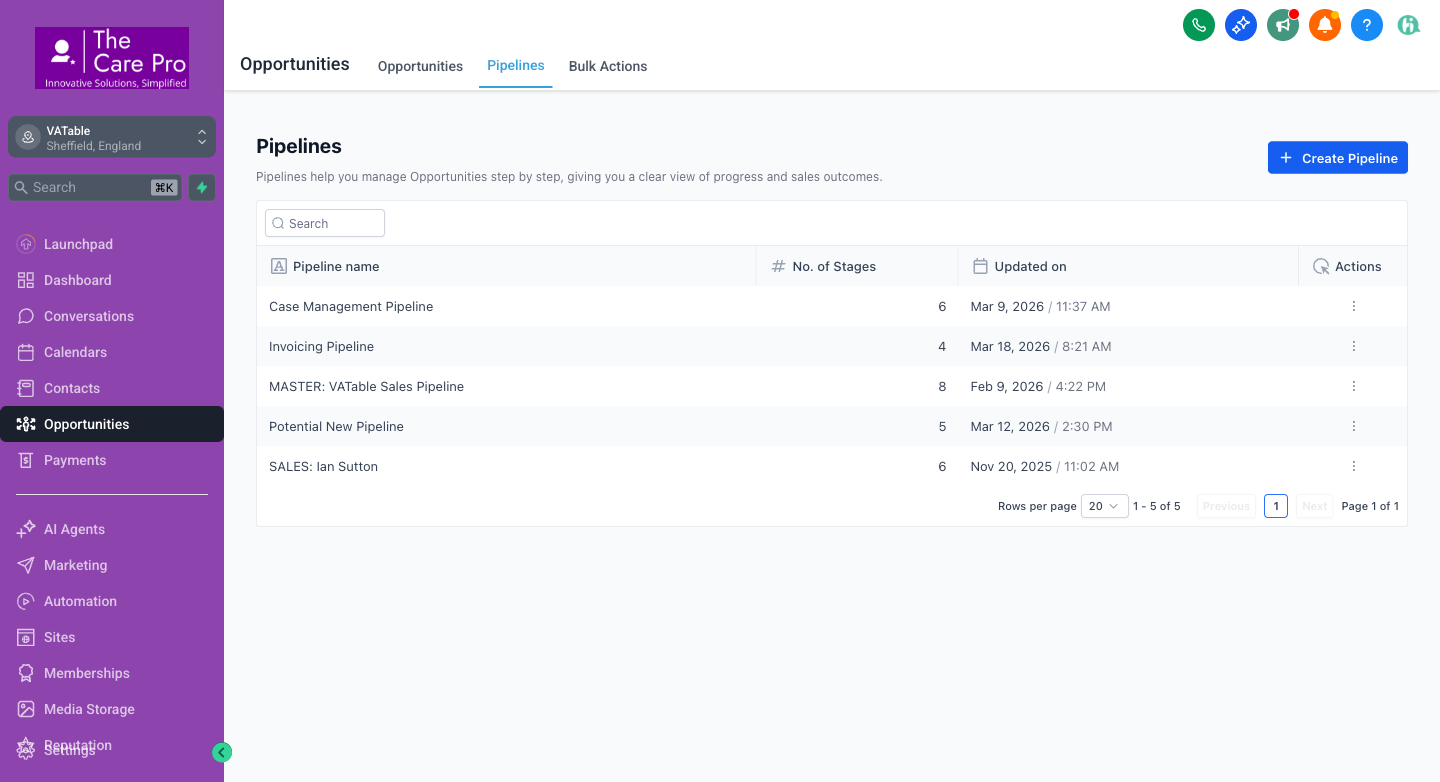
A: There is a separate "Invoicing Pipeline" visible in the Opportunities > Pipelines list (4 stages, last updated 18 Mar 2026). This may be used for tracking invoice status as opportunities. Check with Charles about whether this pipeline is actively used or if it duplicates the Payments > Invoices functionality.
Q: Can the invoice be created automatically when a case reaches End of Engagement Review?
A: Not currently. The GHL Invoice API returns 403/500 errors when called programmatically. The automated workflow (WF10) creates a task for Ruby to manually create the invoice. If GHL fixes the API in the future, this process can be automated.
Q: How do I set up online payments (Stripe/PayPal)?
A: Go to Payments > Integrations and connect your Stripe or PayPal account. Once connected, invoices will include a "Pay Now" button that allows clients to pay online with a credit/debit card. This needs to be set up by Charles or an admin.