VATable's GoHighLevel CRM handles email in two distinct ways. Understanding the difference is key to using the system effectively.
Sent automatically by Workflows when specific triggers fire — e.g., when an enquiry is submitted, when a contact moves pipeline stages, or on timed delays. No human action required.
Sent by team members from the Conversations inbox or directly from a Contact record. Used for one-off replies, follow-ups, and personalised communication.
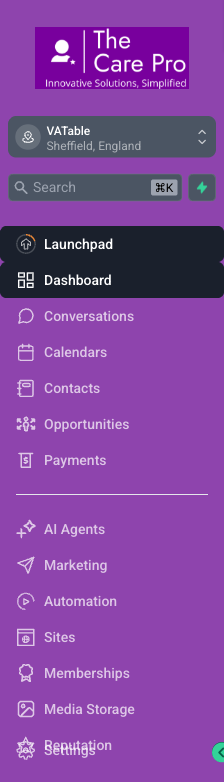
Email-related features are spread across several areas of GHL. Here's your quick-reference map:
| Location | What You'll Find |
|---|---|
| Unified inbox — view, reply to, and send emails to contacts. Also shows SMS, calls, and chat. | |
| Email statistics, campaigns, and reusable email templates. | |
| Full email history for a specific contact, including delivery status. | |
| Where automated email actions are configured inside workflows. | |
| Sending domain configuration, SMTP settings, and email deliverability. |
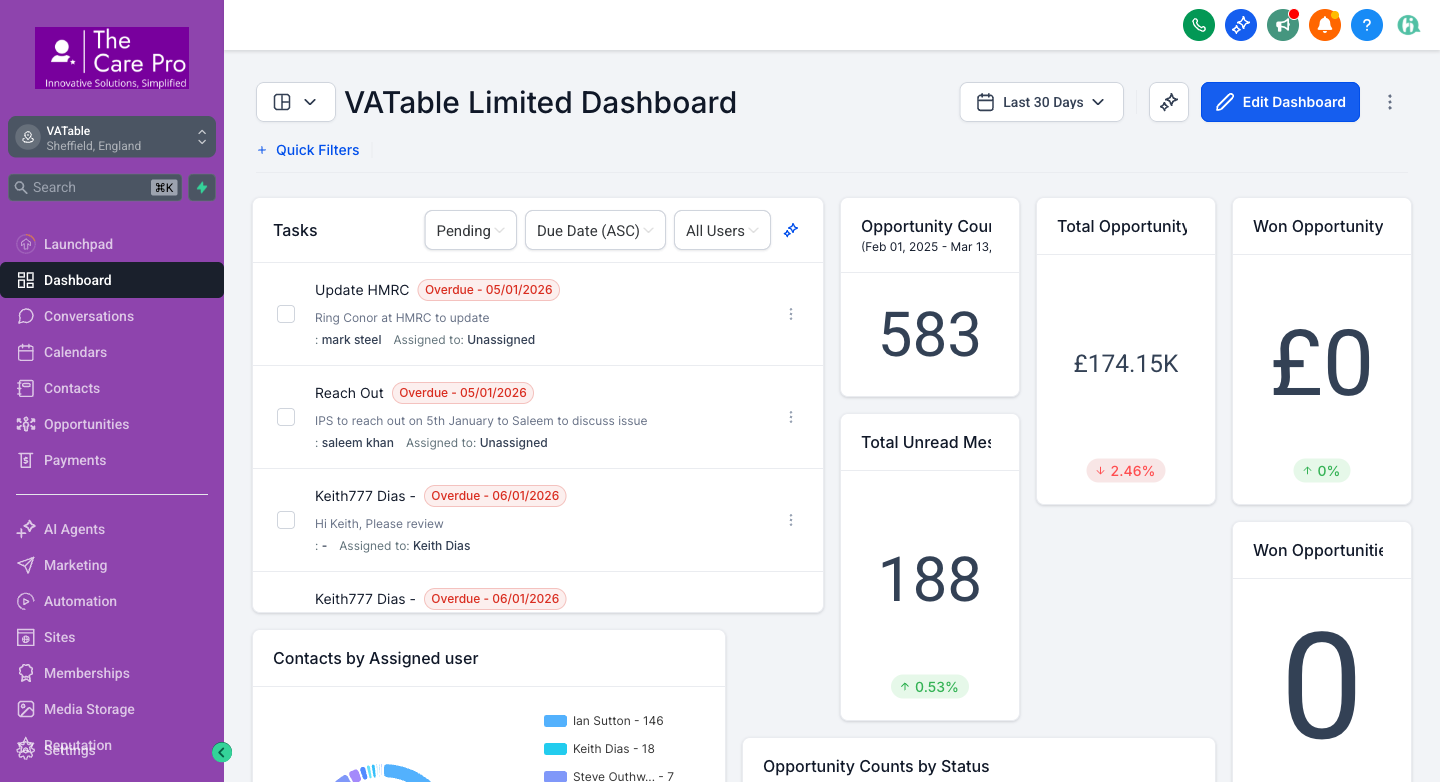
Based on the last 7 days of VATable's email activity (as of 18 March 2026):
Top performers: "Email - Internal Notification" (100% open rate), "Email - from Charles" (100%), "Email - Acknowledgement" (67.7% open, 9.7% click)
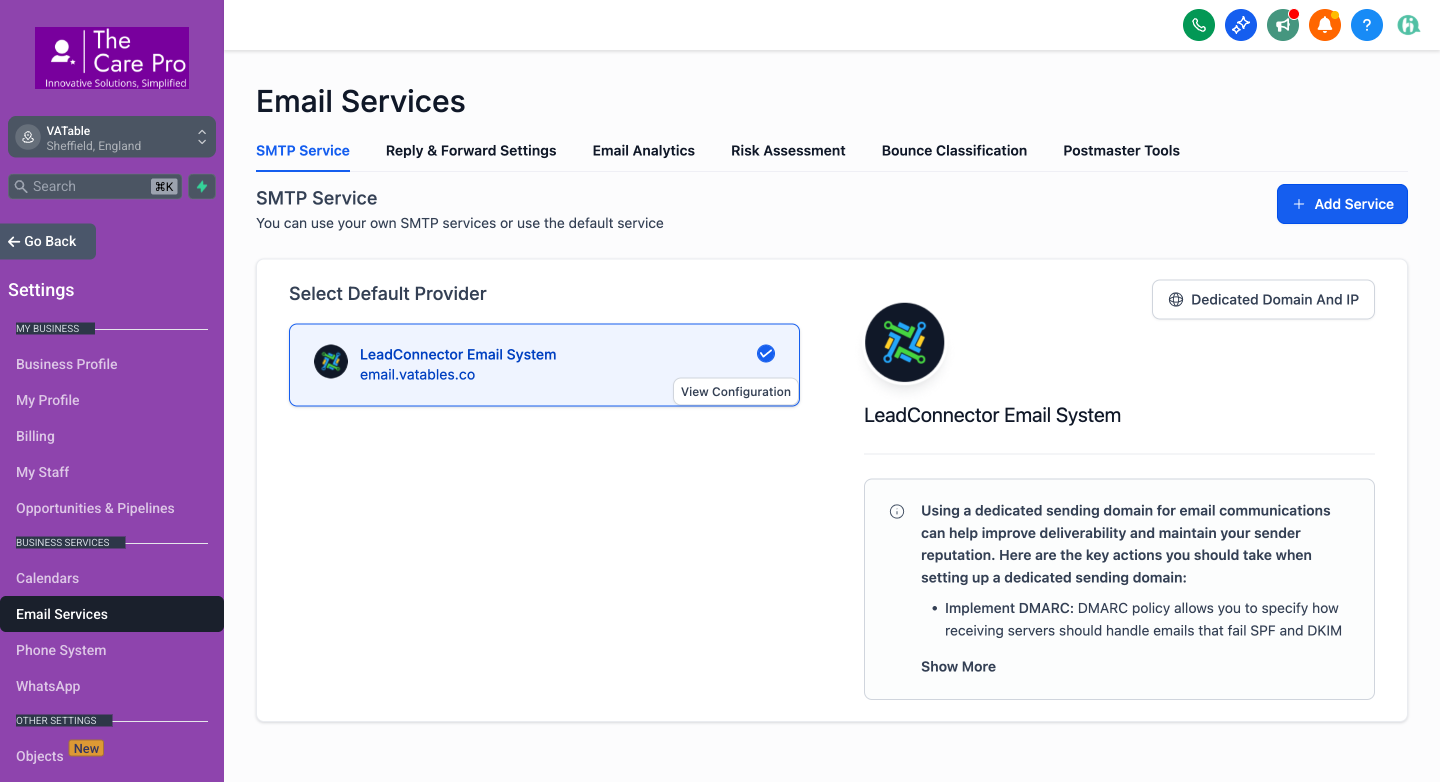
VATable's GHL is currently configured to send emails from email.vatables.co (with an S in "vatables") but the actual business domain is vatable.co (without an S). You can verify this yourself — see the screenshot below showing the Email Services settings page.
What this means:
email.vatables.co instead of vatable.coHow to fix it (Charles must do this):
vatables.co) and remove it or update itvatable.covatable.co domain's DNS settingsFrom any page in GHL, click Settings at the very bottom of the left sidebar. In the Settings menu, look under the "Business Services" section for "Email Services".
The settings page path is:
Until the domain is fixed, check your GHL email statistics regularly at to monitor bounce rates. A high bounce rate damages your sender reputation and makes future deliverability even worse.
Email templates are managed in the Marketing section:
You can also reach this page via this direct link:
Open Email Templates in GHLVATable currently has 19 email templates. Here are the key ones organised by purpose:
| Template Name | Type | Last Updated |
|---|---|---|
| Proposal and Engagement Email | Workflow | 12 Dec 2025 |
| Default - Document Sent | System | 12 Dec 2025 |
| Default - Document Signed | System | 01 Feb 2026 |
| Default - Document Expiry Reminder | System | 01 Feb 2026 |
| Default - Invoice received | System | 21 Oct 2025 |
| Template Name | Type | Last Updated |
|---|---|---|
| Internal Case Brief — VAT | Internal | 18 Mar 2026 |
| Internal Case Brief — Time to Pay (TTP) | Internal | 18 Mar 2026 |
| Internal Case Brief — Direct Tax | Internal | 18 Mar 2026 |
| Template Name | Count | Notes |
|---|---|---|
| Proposal and Engagement-copy / copy-copy | 4 copies | Duplicates that should be cleaned up |
| New Template | 6 templates | Unnamed templates created on 16 Mar 2026 — should be renamed or deleted |
There are currently 10 templates that appear to be drafts or duplicates (4 copies of "Proposal and Engagement" and 6 unnamed "New Template" entries). Charles or an admin should review these and either rename the ones that are needed or delete the duplicates to keep the template library clean.
This is the best method when you're already looking at a contact's details.
Use this method when you want to reply to an existing conversation or compose from the central inbox.
When composing an email, you can use merge fields (also called custom values) to personalise messages. Type {{ to see available merge fields like {{contact.first_name}}, {{contact.email}}, or {{opportunity.per_month_for}}. These will be replaced with the actual contact's data when the email is sent.
You can attach files to manual emails:
Every email sent to or received from a contact is recorded on their Activity tab. This is the single source of truth for a contact's communication history.
The Conversations inbox also preserves the full threaded history of all communications (email, SMS, calls, chat) with each contact.
To see aggregate statistics for all emails sent (not per-contact), use the Marketing section:
Open Email Statistics in GHL
This shows overall performance metrics, top-performing emails, and trends over time. You can filter by date range and by specific campaigns.
Several VATable workflows include automated email actions. These are triggered without any manual intervention when conditions are met.
When a contact's opportunity is moved to "Not Moving Forward" in either the MASTER or Ian Sutton pipeline, Workflow 13 (NMF Kill Switch) fires and:
nmf-cleared to the contactThis is by design. If a lead is not moving forward, they should not receive any more automated communication from VATable.
If you need to see which workflows a specific contact is enrolled in, open their contact record and check the Workflow tab. This shows active enrolments and completed workflows. If a contact is receiving emails they shouldn't, check here first.
GHL shows delivery status for every email sent. Here's what each status means:
VATable currently has a 5 out of 49 bounce rate (~10.2%) over the last 7 days. A healthy bounce rate should be below 2%. This elevated rate is likely related to the vatables.co domain mismatch (see Section 2). Fixing the sending domain should significantly reduce bounces.
The Conversations inbox is VATable's central hub for all client communications. It combines emails, SMS messages, phone calls, web chat, and more into a single unified view.
Open Conversations in GHLThe Conversations page has three main areas:
The Conversations inbox supports several filters to help you find specific communications:
| Filter | How to Use |
|---|---|
| By Channel | Click the channel filter at the top to show only Email, SMS, Phone, Web Chat, or All channels |
| By Status | Filter by All, Unread, or Starred conversations |
| By Assigned User | Filter to see only conversations assigned to a specific team member (e.g., Ian Sutton, Keith Dias, Charles Dobson) |
| Search | Type a contact name, email, phone number, or message content in the search box to find specific conversations |
Conversations can be assigned to specific team members so that the right person handles each client communication.
Currently, Ian Sutton has the most assigned conversations (151), followed by Keith Dias (22) and Steve Outhwaite (7).
The Conversations section has additional sub-tabs accessible from the top navigation bar:
Use the Unread filter first thing in the morning to quickly see which contacts have sent new messages overnight. With 188 unread messages currently in the system, filtering helps you prioritise responses.
If you reply from your personal email client (e.g., Outlook), the response will NOT be recorded in GHL. This breaks the conversation history and means other team members can't see your reply. Always use the GHL Conversations inbox to send replies.
The Conversations compose area can send via Email, SMS, or other channels. Always verify you're on the Email channel before composing your message. Sending an email-length message via SMS will result in multiple text messages and carrier charges.
If a workflow has already sent an acknowledgement, proposal, or follow-up email, don't send the same content manually. Check the contact's Activity tab to see what's already been sent before composing a new message.
When sending emails that follow a standard format (e.g., proposals, case briefs), use the pre-built templates rather than writing from scratch. This ensures consistent branding, correct contact details, and a professional look.
Regularly check for bounced emails. Hard bounces (invalid addresses) should have their email updated or the contact marked appropriately. A high bounce rate damages deliverability for all future emails.
Once a contact is moved to "Not Moving Forward", all automated emails stop and the tag nmf-cleared is applied. If a contact later becomes active again, they will need to be manually re-enrolled into workflows. This is intentional to prevent unwanted emails to closed leads.
When sending manual emails, always include a descriptive subject line. This helps clients identify the email in their inbox and helps the VATable team find emails later in the conversation history. Reference the case type when relevant (e.g., "VATable - Your VAT Case Update").
Before sending any email from GHL, mentally check these three things:
1. Am I in GHL (not Outlook)? 2. Is the channel set to Email? 3. Has this email already been sent by a workflow?
vatables.co to vatable.co in Settings > Email Services