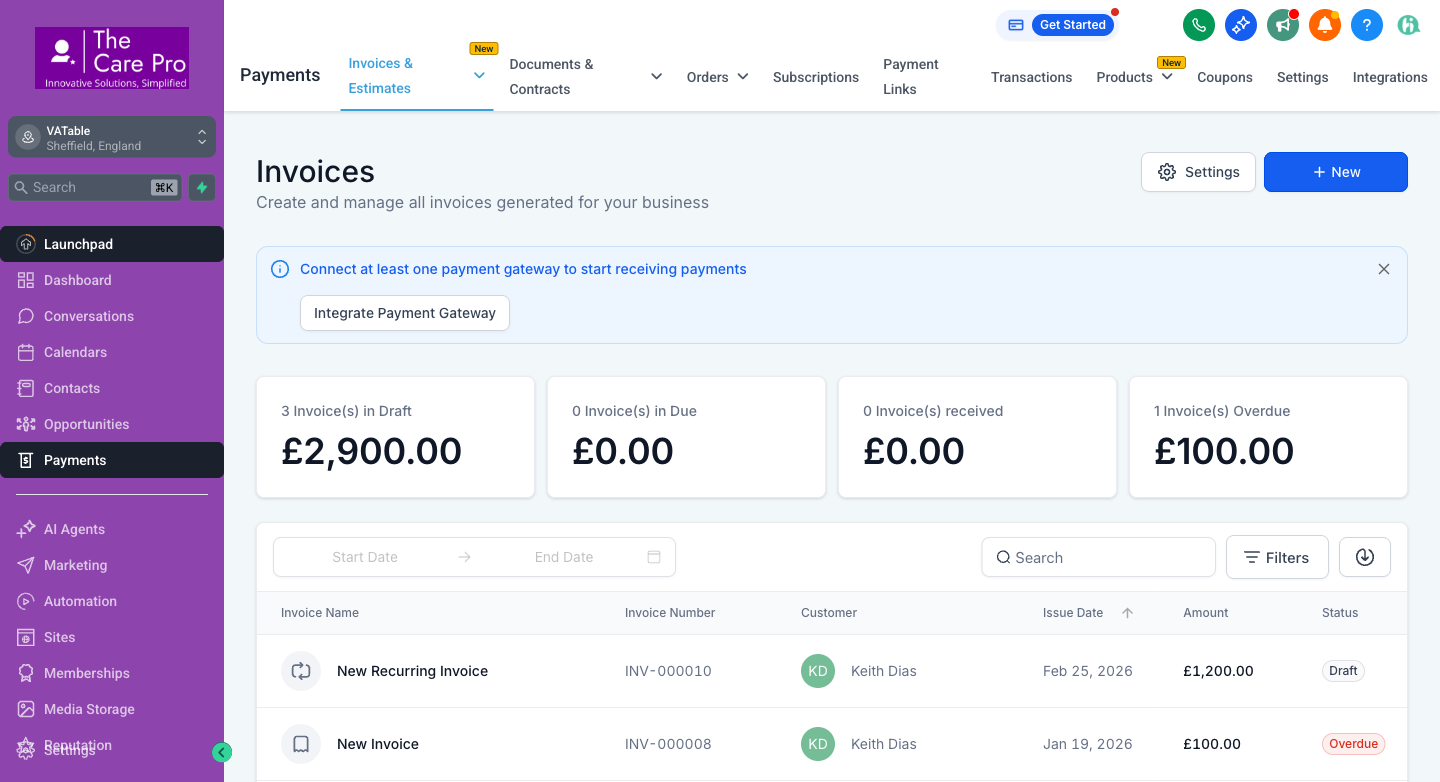
Documents & Contracts live inside the Payments section of GoHighLevel. This is where you create, send, and track all document templates including the Engagement Letter, 64-8, and Proposal.
Navigation Steps
Log in to GoHighLevel at link.thecarepro-ai.co.uk and ensure you are in the VATable sub-account (check the top-left shows "VATable, Sheffield, England").
In the left sidebar, click Payments. This opens the Payments area with a horizontal navigation bar at the top.
In the top navigation bar, click Documents & Contracts. This is the second tab, right next to "Invoices & Estimates".
You will see two sub-tabs: Documents (for templates you have built) and Sent Documents (for tracking what has been sent to clients).
The Payments section with the Documents & Contracts tab visible in the top navigation bar.
Tip
On some GHL layouts, Documents & Contracts may also be accessible via Sites > Documents & Contracts. Both paths lead to the same place.
2 Document Templates List
VATable uses three main document templates in GHL. Each serves a specific purpose in the client onboarding and engagement process.
📝
Proposal
Outlines the engagement terms, fees, and scope of work. Sent automatically when an opportunity moves to "Proposal Sent".
📄
Engagement Letter
Formal agreement to engage. Client signs to confirm they are appointing VATable. Triggers case management workflows when signed.
📋
64-8 Form
HMRC authorisation form. Client signs to allow VATable to act as their tax agent. Required for all tax cases.
How to View Templates
Navigate to Payments > Documents & Contracts.
Click the Documents sub-tab (this is selected by default).
You will see a list of all available templates. Each shows the template name, creation date, and a three-dot menu for editing or duplicating.
To preview a template, click on its name. To edit, click the three-dot menu and select Edit.
Important
Do not edit document templates without discussing changes with the team first. Template changes apply to all future documents generated from that template. If you need to test changes, duplicate the template first.
3 How the Proposal Is Sent Automatically
The proposal is sent automatically via the workflow named "2. Business Development - Send Proposal - Opportunity". This workflow has 116 total enrollments to date, confirming it is actively used.
How It Works
Workflow: 2. BD - Send Proposal
Opp moves to "Proposal Sent"→Check BDM Contact→Send Proposal Email→Add "proposal-sent" tag
A team member (typically the BDM) opens the client's opportunity in the MASTER: VATable Sales Pipeline.
They drag the opportunity card (or update the stage) to "Proposal Sent".
The workflow triggers automatically. It checks the Business Development contact details and sends the proposal document to the client via email.
The client receives an email containing a link to view and review the proposal.
Tip
You do not need to manually send the proposal in most cases. Simply moving the opportunity to "Proposal Sent" handles everything automatically. Only send manually if the automated email failed or the client did not receive it.
4 How to Send a Document Manually
You can send any document template manually to a contact at any time. This is useful for resending a document, sending documents outside the normal workflow, or when the automated sending did not trigger.
Step-by-Step Instructions
Navigate to Contacts in the left sidebar and find the contact you want to send the document to. Click on their name to open their contact record.
In the contact record, look for the Documents tab in the horizontal menu across the top of the contact details (alongside Activity, Tasks, Notes, etc.).
Click the Documents tab. You will see any previously sent documents for this contact, along with their status.
Click the "+ New" or "Send Document" button (top-right area of the Documents tab).
A dialog will appear asking you to choose a template. Select the appropriate template:
• Engagement Letter -- for formalising the client engagement
• 64-8 -- for HMRC agent authorisation
• Proposal -- for sending service/fee proposals
The document editor will open showing the template with merge fields pre-filled from the contact's record. Review the document to ensure:
• The client's name is correct
• Any monetary values or dates are accurate
• All merge fields have resolved (no blank {{field}} placeholders)
If everything looks correct, click Send. The client will receive an email with a link to view and sign the document.
Before You Send
Always check that the contact's email address is correct and that the document's merge fields have populated properly. A document sent with blank fields or to the wrong email creates a poor client experience and requires resending.
5 Tracking Document Status
Every document you send goes through a clear status lifecycle. GHL tracks this automatically so you always know where a document stands.
Document Status Flow
Sent
→
Opened
→
Signed
→
Triggers Workflow
Status
What It Means
Action Required
Sent
The document email has been delivered to the client's inbox. They have not opened it yet.
Wait 1-2 business days. If still not opened, consider a follow-up call or resend.
Opened
The client has opened the document link but has not signed yet. They may be reviewing it or have questions.
If open for more than 2 days without signing, follow up to ask if they have questions.
Signed
The client has applied their e-signature and submitted the document. Workflows trigger automatically.
No action needed. Confirm the associated workflows have fired correctly (see sections 6 and 7).
Declined
The client has actively declined to sign the document.
Contact the client to understand their concerns. You may need to amend the document and resend.
Expired
The document signing link has expired before the client acted.
You will see a list of all documents sent to this contact with their current status (Sent, Opened, Signed, Declined).
Method 2: Global Sent Documents View
Navigate to Payments > Documents & Contracts.
Click the Sent Documents sub-tab.
This shows all documents sent across all contacts. Use the search bar and filters to find specific documents by client name, template, or status.
6 What Happens When the Engagement Letter Is Signed
When a client signs the Engagement Letter, two automated workflows fire to handle the next steps. This is the most important document in the VATable process because it transitions the client from a prospect into an active case.
Automated Actions
Workflow 1: "3. Documents Signed and Moved to Case Management"
Engagement Letter Signed→Find Opportunity→Move to Case Management Pipeline→Update Stage & Assign
27 enrollments to date · Published · Moves the client's opportunity from the Sales Pipeline into the Case Management Pipeline.
Document Signed→Add Note to Contact→Log with months count
WF8 logs a note to the contact record confirming the document was signed, including the engagement duration (using the {{opportunity.per_month_for}} merge field). Merge field fixed on 18 March 2026.
What You Should Check After Signing
Open the contact record and check the Notes tab to confirm the automated note was logged.
Check the Opportunities tab to verify the opportunity has moved from the Sales Pipeline to the Case Management Pipeline.
If the opportunity did not move, it may be because the "Find Opportunity" step in the workflow could not locate the opportunity. This happens when the opportunity was not in the "Proposal Sent" stage at the time of signing. See Known Issues for details.
When It Works Correctly
After the Engagement Letter is signed: a note appears on the contact record, the opportunity moves to the Case Management Pipeline, and the case is ready for the team to begin work. No manual intervention is needed.
7 What Happens When the 64-8 Is Signed
The 64-8 is the HMRC authorisation form that allows VATable to act as the client's tax agent. When a client signs it digitally, the following happens automatically:
WF8 -- 64-8 Auto-Note
64-8 Signed→Add Note to Contact→Confirmation logged
WF8 adds a note to the contact record confirming that the 64-8 authorisation has been signed. This note includes the engagement details via the {{opportunity.per_month_for}} merge field. Live
What You Should Do After the 64-8 Is Signed
Check the contact's Notes tab to confirm the auto-note was logged.
The signed 64-8 form should be downloaded and submitted to HMRC. GHL stores the signed copy in the contact's Documents tab -- you can download it from there.
Update the contact's opportunity with any relevant notes about the HMRC submission status.
Tip
The 64-8 is typically sent alongside or shortly after the Engagement Letter. Both documents need to be signed before VATable can begin working on a client's case. Always check that both are signed before proceeding.
8 How to Resend a Document
If a client has lost the email, the signing link has expired, or the document was sent to the wrong email address, you can resend it.
Steps to Resend
Navigate to Contacts and open the client's contact record.
Click the Documents tab to see all previously sent documents.
Find the document you need to resend. Click the three-dot menu on that document row.
Select Resend or Copy Link:
• Resend -- sends a fresh email to the client with a new signing link.
• Copy Link -- copies the signing URL to your clipboard so you can share it manually (e.g., via WhatsApp, SMS, or in a conversation).
If the document status shows "Expired" or "Declined", you may need to create a new document instead. Click "+ New" and select the same template to generate a fresh copy.
Important
Before resending, verify the client's email address is correct in their contact record. If the original email bounced, resending to the same address will fail again. Update the email first, then resend.
9 E-Signature Best Practices
Following these practices will ensure documents are processed smoothly and clients have a positive signing experience.
Practice
Why It Matters
Always check document status before chasing a client
Open the contact's Documents tab first. If the status shows "Opened" 20 minutes ago, the client may still be reading. Do not call them immediately -- give them time.
Use the Documents tab on the contact record
This is the single source of truth for a contact's document history. Do not rely on email threads to track signing status.
Preview before sending
Always click Preview in the document editor before sending. Check that all merge fields have resolved correctly, especially monetary amounts, dates, and names.
Send one document at a time
Sending the Engagement Letter and 64-8 simultaneously can overwhelm clients. Send the Engagement Letter first. Once signed, send the 64-8.
Follow up on "Opened" documents after 48 hours
If a client opened the document but hasn't signed within 2 business days, call or email to ask if they have questions.
Do not edit templates without team agreement
Template changes affect all future documents. Discuss any edits with Charles before making changes.
Download signed copies for your records
GHL stores signed documents, but always download a copy of signed 64-8 forms for HMRC submission and keep them in the client's file.
Check opportunity stage before sending
The "Documents Signed" workflow relies on the opportunity being in the correct stage. If the opportunity is not in "Proposal Sent" when the Engagement Letter is signed, the automation will not fire.
10 Known Issues & Pending Fixes
The following issues have been identified and are in the process of being resolved. Be aware of these when working with documents.
Engagement Letter Issues
Issue
Impact
Status
Engagement letter occasionally sent twice (IP3)
Clients receive duplicate emails with the same document. This undermines trust and causes confusion.
Fix In Progress Root cause: The same workflow triggers twice when the opportunity is moved to "Proposal Sent" more than once. Fix: Add an engagement-letter-sent tag guard so the workflow exits immediately on re-entry.
"Documents Signed" workflow may not fire (Item 2)
After signing, the opportunity does not automatically move to Case Management. Requires manual intervention.
Investigation Needed The "Find Opportunity" step fails if the opportunity is not in the "Proposal Sent" stage at signing time. Check Execution Logs when this occurs.
64-8 Form Issues
Issue
Details
Status
Name auto-filling above signature (Item 10)
The client's name appears as typed text above the signature block, in addition to the signature itself. Only the signature should be there.
Manual Fix Pending
VAT number boxes misaligned (Item 11)
The 9-digit VAT registration number digits are not landing in the correct boxes on the HMRC form layout.
Manual Fix Pending
Agent code not added (Item 12)
VATable's newly issued HMRC agent code needs to be added to the form. Currently blank or showing a placeholder.
Manual Fix Pending
Client reference not pulling through (Item 13)
The Client Reference field from the opportunity does not auto-populate in the 64-8. Linked to the Proposal's P7 fix.
Manual Fix Pending
iPad / mobile signing issues (Item 14)
The signature box is too small on tablets, layout overflows, and the submit button may be hidden on mobile devices.
Manual Fix Pending
Address on single line (Item 64-1)
The client address appears on one line instead of three (street, city, postcode). Does not match the HMRC form layout.
Manual Fix Pending
Proposal Document Issues
Ref
Issue
Status
P1
Proposal does not fit laptop screen properly -- layout/scaling needs adjustment for A4 format.
Manual Fix Pending
P2
No line break after salutation -- "Dear [Name]," runs directly into the next paragraph.
Manual Fix Pending
P3
"You have been making payments of" line appears even when the payment field is blank.
Manual Fix Pending
P4
The word "months" is missing after the auto-filled number of months (reads "12" instead of "12 months").
Manual Fix Pending
P5
Outdated reference to Charles issuing an information request needs to be removed.
Manual Fix Pending
P6
"Arrangements need to be made by" line appears with a blank date when no deadline is set.
Manual Fix Pending
P7
Client Reference format not finalised -- Charles and Jock to agree on the format.
Awaiting Decision
Workaround for Known Issues
Until these fixes are applied, always preview every document before sending. Check for blank fields, formatting problems, and correct data. If you spot an issue, do not send the document -- flag it to the team instead.
What Has Been Fixed
Fix
Details
Status
WF8 merge field
The {{opportunity.per_month_for}} merge field in the auto-note was not resolving. Fixed 18 March 2026.
Live
Appendix 1 layout (C22)
Appendix 1 layout on the Engagement Letter has been tidied up.
Completed
Jock's signature (C23)
Jock's signature has been loaded onto the Engagement Letter template.
Completed
BDM Form label (C14)
"Send Engagement Letter" has been renamed to "Yes - Send Proposal" on the BDM form.
Completed
Quick Reference Summary
Task
Where
Key Action
View document templates
Payments > Documents & Contracts > Documents tab
Click template name to preview
Send a document manually
Contact record > Documents tab > + New
Select template, review, click Send
Check document status
Contact record > Documents tab
Look for Sent / Opened / Signed status
View all sent documents
Payments > Documents & Contracts > Sent Documents tab
Use search and filters to find specific docs
Resend a document
Contact record > Documents tab > three-dot menu
Click Resend or Copy Link
Download signed document
Contact record > Documents tab > Signed document row
Click to download the signed PDF
Edit a template
Payments > Documents & Contracts > three-dot menu > Edit